
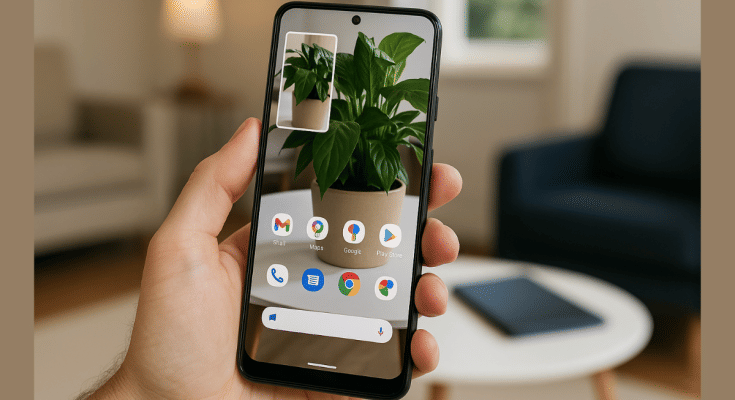
Key Highlights
- Gemini live camera and screen sharing feature becomes free for Android users
- Feature rolling out gradually to Android
- Can be accessed via Gemini app on Android smartphones and tablets
Google Gemini has been receiving significant improvements making Android more potent and advanced. Dedicated Gemini mobile app has been released and it has even replaced the older Google Assistant on all Android platforms. Gemini is consitently getting upgraded with advanced AI features and now one of its progressive camera and screen sharing feature is being widely accessible to all the Android users.
For the tech geeks, stay updated with the latest cutting-edge gadgets in the market, exclusive tech updates, gadget reviews, and more right on your phone’s screen. Join Giznext’s WhatsApp channel and receive the industry-first tech update.
Also Read: ChatGPT Vs Microsoft Copilot: The AI Battle In 2025!
Gemini Live Camera And Screen Sharing Feature Explained
We’ve been hearing great feedback on Gemini Live with camera and screen share, so we decided to bring it to more people ✨
— Google Gemini App (@GeminiApp) April 16, 2025
Starting today and over the coming weeks, we're rolling it out to *all* @Android users with the Gemini app. Enjoy!
PS If you don’t have the app yet,… https://t.co/dTsxLZLxNI
The Live camera and screen sharing is one of the premium features offered by Gemini. This feature has been available for the Gemini Advanced users until now and is now finally being made available to all the Android users for free. A post shared on Gemini’s X handle confirms this development and the availability of this live screen and camera sharing feature.
This update is being rolled out to all of the Android users gradually in batches. The wider release has already started and is expected to be available for all the users in a phased manner. Google Pixel 9 and Samsung Galaxy S25 are the first to recieve Gemini’s live camera and screen sharing feature. Remaining smartphones will soon start offering the same.
Also Read: Gemini Live Voice Chat Now Open To All Android Users: Features
How To Use Gemini Camera Sharing Feature On Android
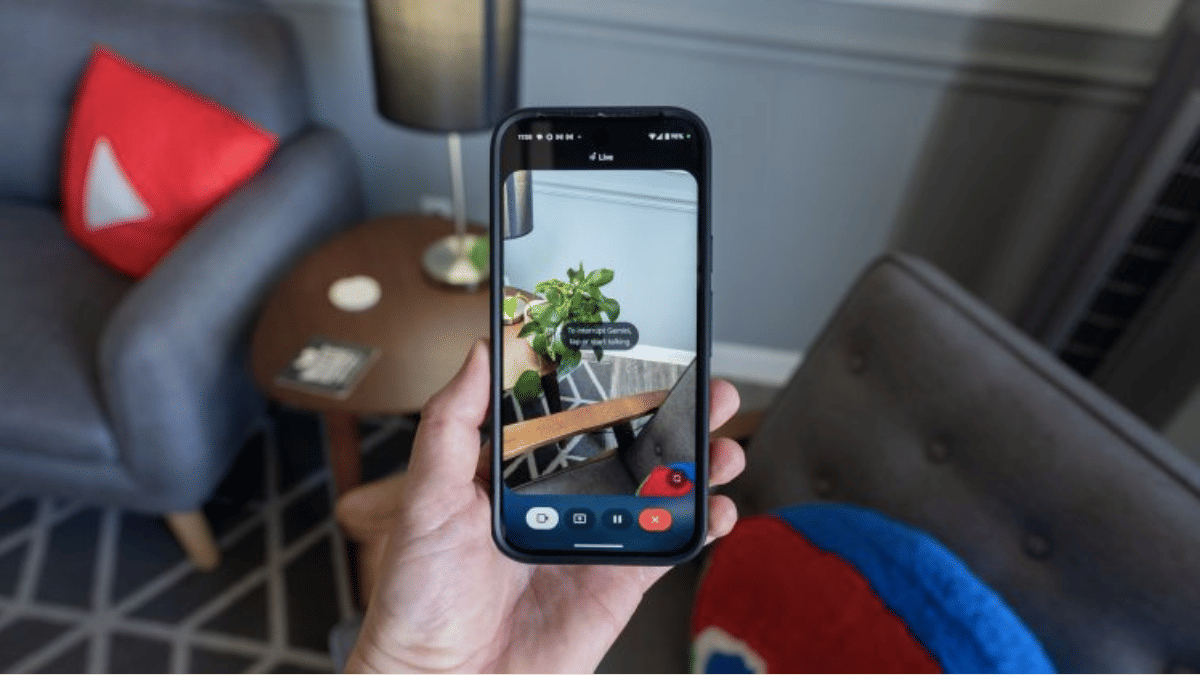
Step 1: On your Android smartphones, open the Gemini Live interface
Step 2: Enable the full screen mode
Step 3: A new camera icon will be displayed. Tap on it.
Step 4: Click on the viewfinder to switch between rear and the front camera
Step 5: Simply ask Gemini queries pointing the camera at the object
Also Read: Three Effective Ways To Restore Deleted Games And Apps On Windows 11 Laptops And PC: How To Guide
How To Use Gemini Live Screen Sharing Feature
Step 1: Unlock your Android smartphone and launch Gemini app. You can also summon Gemini using voice command.
Step 2: Look for a new pop up “Share screen with Live”. Tap on it.
Step 3: Once the confirmation is done, the screen will start sharing live.
Step 4: Drag down the notification shade to bring the “Stop Sharing” tab. Tap on it when you wish to stop the live screen sharing.
