
Key Highlights
- WhatsApp now supports filters in video calls
- Background can also be changed
- Feature available for both Android and iOS users
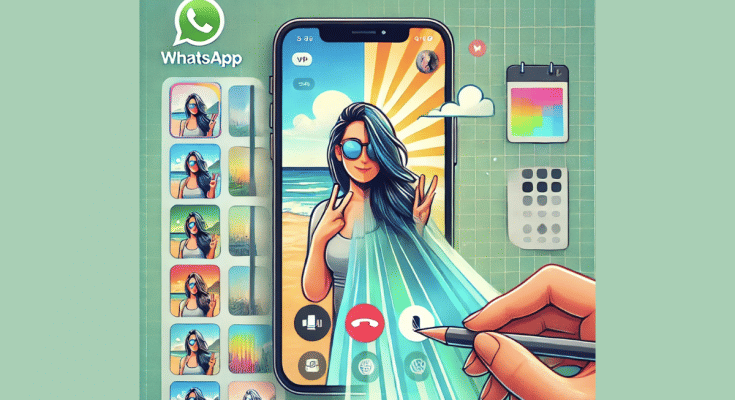
WhatsApp is definitely the go-to mobile app for messaging. And with the introduction of audio and video calls, it has become more popular amongst the masses globally. Being the most secure platform for personal and professional conversations, WhatsApp is undoubtedly offering a premium experience to the Android and iOS users. WhatsApp has introudced several features that enhance the messaging and calling experience on its platform. One of such options which makes video calling more intuitive is the background change and filters. This feature is also beneficial for the working professionals who wish to hide untidy background during an emergency meeting, while for others it adds a touch of fun. So, how can you add filters or change background in WhatsApp video calls? Read on the step-guide here:
For the tech geeks, stay updated with the latest cutting-edge gadgets in the market, exclusive tech updates, gadget reviews, and more right on your phone’s screen. Join Giznext’s WhatsApp channel and receive the industry-first tech update.
Also Read: Aadhaar Card Lost Or Misplaced? Here’s How to Apply for a Duplicate Aadhaar Card Online
Why Should You Use Filters & Backgrounds In WhatsApp Video Calls?

- For Enhanced Privacy – Allows you to hide surroundings during calls making your video chats more private.
- For Better Presentation – Helps you to get that professional vibe for the next official meeting or conference.
- For More Fun & Creativity – Adding filters is also an option to make conversations more fun
Also Read: Summer 2025 Buying Guide: How To Choose The Perfect Air Conditioner And Pay Less Electricity Bills
How to Add Filters in WhatsApp Video Calls
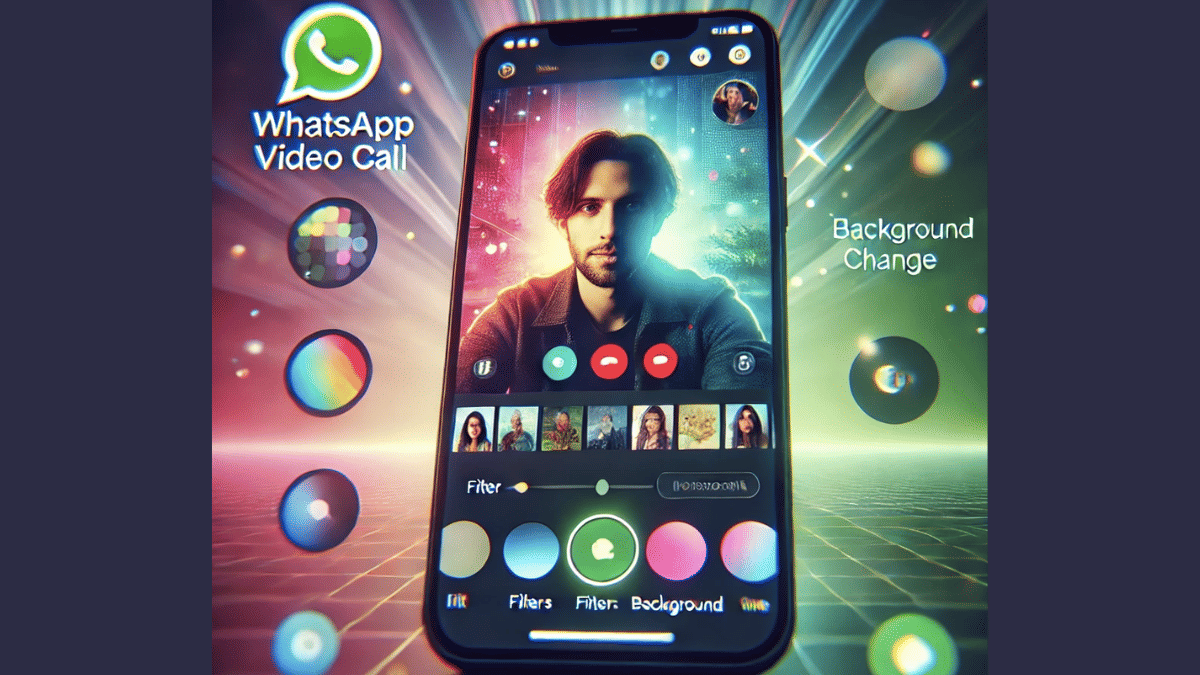
This is the option which will help you make video calling more fun. The experience is further refined by the option with which you can refine your skin tones for a cleaner look.
Steps For Android, iOS Users:
- Start a Video Call: Open WhatsApp and initiate a video call with any contact.
- Access Effects Menu: Tap anywhere on the screen during the ongoing call and select “Effects” or “Filters” icon (appears on the call screen).
- Choose a Filter: Now, scroll and find the suitable filter and simply tap on it to apply. Changes will be made real time.
- Adjust as Needed: Brightness or contrast levels adjustments can be done to some of the filters. Do so if required.
How to Change Background in WhatsApp Video Calls
For Android & iOS Users:
- Start Video Call: Open WhatsApp mobile app and start a video call as you generally do.
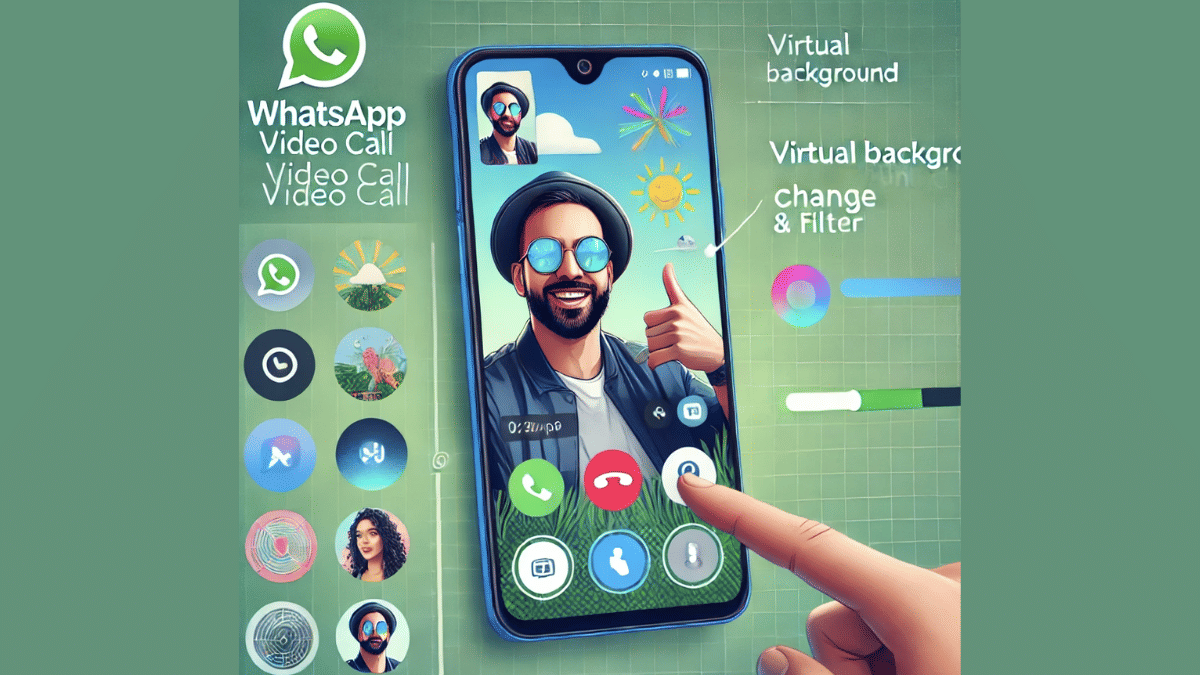
- Tap on the Background Option: This option appears when you tap anywhere on the screen during the video call.
- Select Background Type For The Video Call :
- Blur – This option will keep the user in focus while blurring the background and surroundings.
- Custom Image – This will allow adding a custom photo as the background during WhatsApp video call. You can select any image from the phone’s gallery.
- Preset Backgrounds – There are a bunch of preset images which you can select from the WhatsApp’s default images option.
- Apply the Background: After selecting the desired background, it will start reflecting in the video call immediately in real time.
- Remove or Change Background: If you wish to go back to the default settings or use a different background just go back to the previous settings.
